How to extend battery life on Android/iPhone
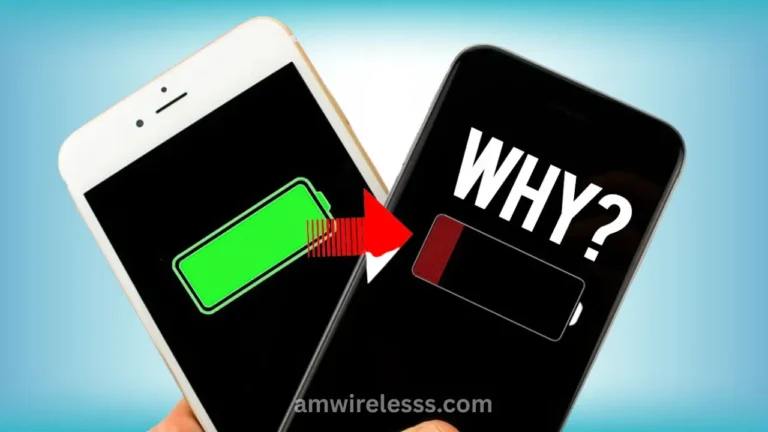
If your phone runs out of power faster than it should, you’re not imagining it. A phone battery fades a bit each day, and small habits can speed that up without you noticing. This guide shows you clear steps that help your battery last longer on both Android and iPhone, without tricks or complicated settings.
The quickest ways to extend battery life on Android and iPhone are lowering screen brightness, closing background apps, turning off features you don’t need, keeping your phone cool, and using built-in power modes. These steps cut the biggest sources of drain in minutes.
Why Batteries Drain Faster Than You Expect
Your phone loses power for a mix of small reasons that stack up through the day. Once you see what those reasons are, the fixes make far more sense. Here are the main factors in simple terms:
- Bright screens: A bright display works like a lamp turned to full. It draws steady power every second it stays lit.
- Apps running in the background: Some apps keep checking messages, location, or data even after you leave them. Each small task adds to the drain.
- Location, Bluetooth, and Wi-Fi scanning: These tools keep searching for signals or nearby devices. That quiet activity uses more power than most people realise.
- Weak signals: When your phone struggles to hold a connection, it works harder. This extra effort drains the battery faster.
- Heat: A warm phone loses power quickly. Heat makes the battery work under stress, and the charge slips away sooner.
- Ageing batteries: Every battery loses strength over time. An older battery holds less charge and drops faster even during light use.
These causes explain why your phone dies sooner on some days and lasts longer on others. Once you understand them, the steps in the next section help you get more hours from each charge.
Steps That Help You Extend Battery Life
These steps work on both Android and iPhone. They are simple, quick to apply, and target the biggest sources of drain.
Screen Settings
Lower the brightness to a level that still feels clear. Shorten the screen timeout so the display turns off sooner. If your phone has an OLED screen, dark mode can also save power because dark pixels use less energy.
App Controls
Some apps keep working even when you’re not using them. Close the ones you don’t need and limit refresh for heavy apps like social platforms, maps, and games. This stops them from pulling steady power in the background.
Network and Signal
Turn off features you don’t need, such as location, Bluetooth, hotspots, and Wi-Fi scanning. If you’re in a weak-signal area, switch to airplane mode until the signal improves. This prevents the phone from searching nonstop.
Heat Control
A warm phone drains faster. Keep it out of tight pockets, direct sun, and hot surfaces. If it feels warm, let it cool before gaming, filming, or charging.
Charging Habits
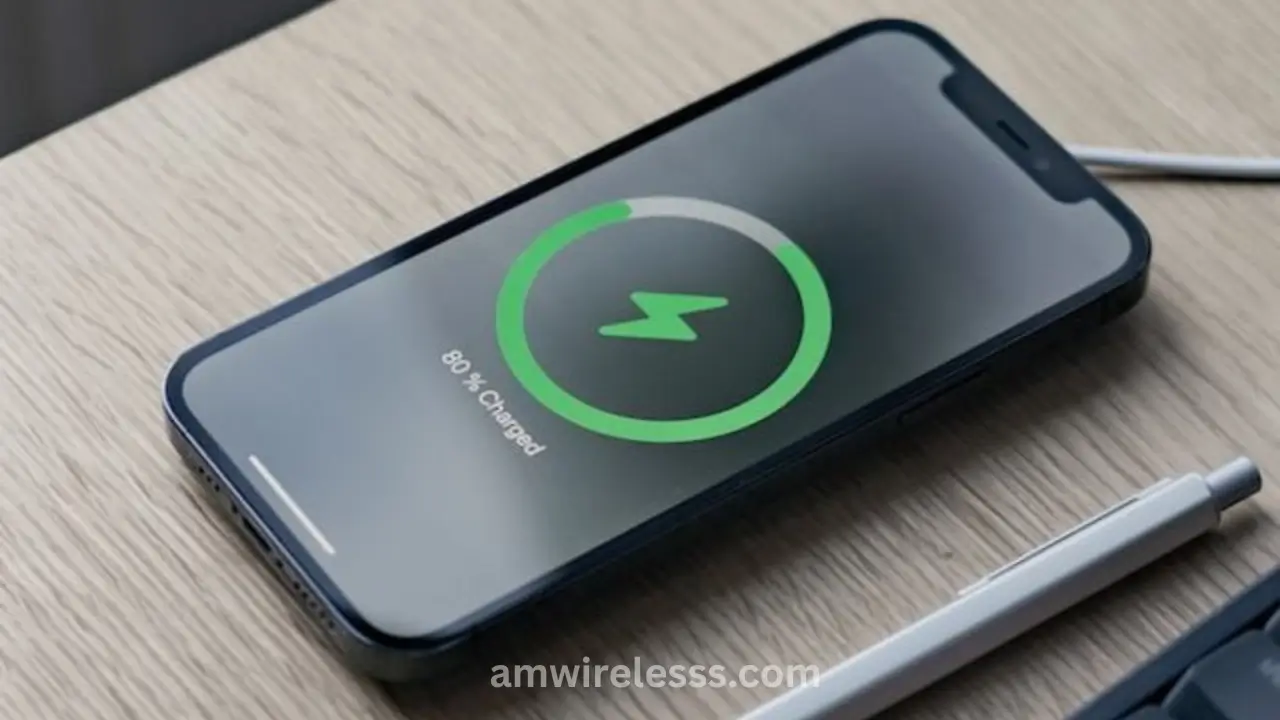
Keep your battery in the middle range when possible. Avoid letting it drop to zero or stay at full for long periods. Use reliable chargers and cables so the battery gets stable power.
Software Updates
Updates often fix bugs that cause drain. Check for new versions often and remove apps that use more power than they should.
Also Read > Why Your Phone Battery Drops Fast and How to Fix It
Tips for Android Users
Android phones give you several tools that help you control power use. These settings are easy to spot once you know where to look.
- Battery Saver: Use this mode when your charge is low. It limits background work and slows tasks that drain power.
- App Power Control: Check which apps use the most power and restrict the ones that run too often.
- Adaptive Battery: This tool learns your habits and reduces power use for apps you rarely open.
- Adaptive Charging: Slows the charge near the top to protect battery health on supported models.
- Battery Usage Stats: Look at the list of power-heavy apps and remove or limit the ones you don’t need.
- Turn Off Unused Features: Bluetooth, hotspots, and scanning tools drain power if left on.
Tips for iPhone Users
Follow all of these tips to extend the battery life of IPhone.
- Low Power Mode: Helps your phone last longer by reducing background tasks and visual effects.
- Background App Refresh: Turn this off for apps you rarely use so they stop pulling power in the background.
- Location Settings: Set apps to “While Using” instead of “Always” to cut steady drain.
- Optimised Battery Charging: Slows charging near the top to protect battery health and reduce long-term wear.
- Battery Usage Screen: Check which apps use the most power and remove or limit the ones you don’t need.
- Turn Off Unused Features: Bluetooth, hotspots, and scanning tools drain power if left on through the day.
Signs That Your Battery Needs Replacement
Here are the simple clues that tell you the battery itself may be the real problem:
- Big drops in minutes: If your charge falls from 80% to 50% without heavy use, the battery cells may be weak.
- Phone shuts off early: A healthy battery should not die at 20–40%. Sudden shutdowns point to worn cells.
- Slow or uneven charging: If you already use a good cable and charger but the speed stays slow, the battery may be struggling.
- Phone heats up during light use: Heat during simple tasks suggests the battery is working harder than it should.
- Low battery health score on iPhone: If the Battery Health page shows a low number, the battery can’t hold power well anymore.
- Age: Older phones naturally lose battery strength over time, even with light use.
These signs show when settings and habits are no longer enough, and the battery itself needs to be checked or replaced.
How AM Wireless Can Help
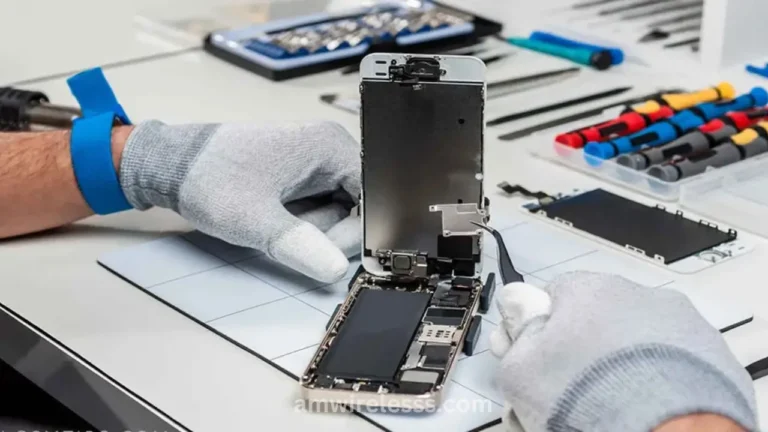
When your phone still drains fast after you try the basic fixes, AM Wireless gives you a clear answer instead of guesswork. The team checks the battery to see if it’s worn, replaces it when needed, and fixes charging ports that cause slow or unstable power.
They also look for heat issues or hardware faults that make the phone work harder than it should. Whether you use an iPhone, Samsung, or another model, you get a quick check, a simple explanation, and a repair that brings your phone back to steady, reliable use.
Final Thoughts
Small changes in how you use your phone can add many extra hours to each charge. Simple steps like lowering the screen brightness, closing power-heavy apps, and turning off features you don’t need help your battery last longer on both Android and iPhone.
If the drain continues even after these checks, the battery itself may be worn or another part may be working too hard. A quick visit to AM Wireless gives you a clear answer and the right fix, so your phone can hold power the way it should and stay useful through the day.